I heard there were use cases where people had OpenClaw read emails on their behalf, so I decided to give it a try. To start simple, I planned to have it organize my mailbox and send periodic mail notifications. I wasn’t quite comfortable linking my primary email accounts right away, so I thought about alternatives and remembered my Naver Mail account. It’s no longer my main account since I’ve mostly moved to Gmail, but it still occasionally receives important messages—one of those accounts you can’t ignore, even if you rarely check it.
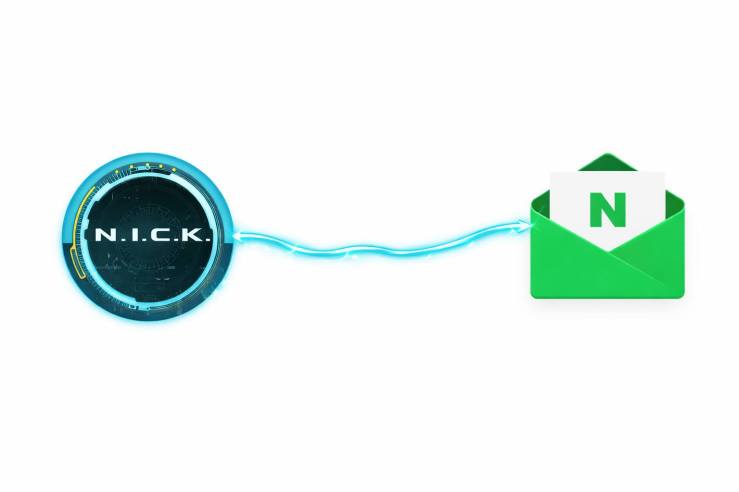
When I asked N.I.C.K., who is my OpenClaw AI assistant, to connect the account, it suggested using IMAP/SMTP. Gmail and Outlook apparently support OAuth as well, but for others this is probably the standard approach. That meant I first needed to verify the IMAP settings for Naver Mail. After checking, I found that Naver had updated its policy last year: to use IMAP/SMTP, two-factor authentication is now mandatory. A bit annoying, but necessary.
Then came another hurdle. To enable 2FA, Naver requires installing the Naver app. Wait—does that mean they expect you to use their app for OTP? Why? I searched thoroughly for a way to use a standard authenticator, but it didn’t seem possible. I had managed to avoid installing the Naver app all this time since it’s basically useless for me—but this is where I finally gave in. After installing the app and completing 2FA setup, IMAP/SMTP was finally enabled.
I returned to N.I.C.K. and provided the Naver Mail IMAP/SMTP connection details. Given how confidently it had suggested IMAP/SMTP earlier, I assumed the capability already existed—but apparently not. Instead, it immediately said it would create a new skill. Fair enough. It’s a well-standardized protocol, so while optimization might be another story, a working version should come quickly. I gave the go-ahead. In about two minutes, it had built the skill and even completed the integration test on its own. At this point, I’m not even surprised.
First, I decided to clean up the backlog in my mailbox. I ambitiously asked it to scan the entire inbox and delete emails matching a certain pattern—for example, two-factor authentication emails—but it took far too long. Understandably, this approach would require a full scan of the entire mailbox each time. So I changed strategy.
I asked it to categorize the most recent 100 emails instead. It did a fairly good job grouping them into categories like social, finance, shopping, and spam. It even summarized how many emails came from each sender within each category. Not bad.
I reviewed the summary, instructed it which ones to delete and which to archive, and then moved on to the next batch of 100. For borderline cases, I asked it to show the subject lines; for anything still unclear, I checked the mailbox directly. I suspect N.I.C.K. could read the email bodies as well, but at that point it was honestly faster for me to just open the mailbox myself. It probably could handle more than 100 at a time, but I stuck with batches of 100 for now.
In terms of speed, it didn’t feel dramatically faster than manually reviewing emails one by one myself. Between issuing commands, waiting for processing, reviewing results, and sending follow-ups, the total time was roughly comparable—possibly even a bit longer. However, the stress level was noticeably lower. I could send a command, go do something else, then review when the response came back. It felt more like I was managing the process rather than being stuck inside it.
Using this method, I completely cleaned out the 1,229 emails that had piled up in my inbox. Deleted what needed deleting, moved the rest to archive folders, and fully emptied the inbox. Actually, my usual email management style is to leave important items in the inbox, but that approach would make future AI instructions less precise. This might a moment where AI starts subtly reshaping personal work habits.
One more interesting observation: because N.I.C.K. accesses the mailbox at the IMAP protocol level, emails it reads do not get marked as “read.” That could turn out to be quite useful for future automation flows.
With the inbox now completely clean, I issued a new command:
Every day at 6 AM, check the inbox, categorize any existing emails, and post them in this channel as a new thread. Use the title format: “YYYY MM DD Naver Mail Summary.” I’ll review and issue management commands within that thread.
And the next day, right on schedule, the thread appeared and the report came in. It simply said “No new mail,” but sooner or later messages will arrive. Let’s see how it performs over time.
 Kirin's Technology Essay